• Skip to primary navigation
  • Skip to main content
  • Skip to footer
Printing for Less

Printing for Less

At Printing for Less, we've offered high quality online printing services since 1996. Shop business cards, booklets, stickers, and more!

My LoginMy Login
800-930-2423
  • Printing
    • Postcards
    • Business Cards
    • Catalogs
    • Brochures
    • Folders
    • Letters
    • Newsletters
    • Envelopes
    • Greeting Cards
    • Print Templates
    • All Products
  • Direct Mail
    • Why Direct Mail Marketing?
    • Every Door Direct Mail® Postcards
    • Direct Mail Letters
    • Catalogs & Booklets
    • Marketing Gifts & Kits
    • Direct Mail Automation
  • Services
    • Mailing Services
    • Pro Services
    • Design Services
    • Custom Printing Services
    • Reseller Program
  • Industries
    • Advertising & Design
    • Food & Beverage
    • Healthcare Payers
    • Healthcare Providers
    • Nonprofit
    • Real Estate
    • Retail
    • Technology
    • University
  • Resources
    • Direct Mail Marketing
      Resource Center
    • Printing Resource Center
    • Blogs
    • Templates
    • Video Library
    • Have a Question?
  • Get Samples
  • Get a Quote

Blog

8 Creative Brochure Designs to Make You Rethink the Basics

Eons ago, brochures must have been incredibly innovative (you mean the paper folds into itself? How positively spiffing!)

But like the horseless carriage or the iPhone 4, the thrill of the brochure has worn off with time. Too many businesses linger in the past, creating tired brochures that all look and feel the same.

You’re not the same as your competitors, so why should your brochure be? If you’re going to spend your marketing budget on print materials, don’t settle for anything less than a fresh and snappy design. 

Here are eight brochure design ideas with enough creative, cutting-edge print effects to make your brochure standout among the rest.

1. Turn the lights off.

Black, as a design element, draws the eye and conveys sophistication in a way that no other color can. Bold color on a dark base draws attention to your material, almost making it pop up from the page.

And with glow-in-the-dark ink, you can create a brochure that literally works with the lights off. Restaurants, movie theaters, nightclubs — the applications for bioluminescence are endless!
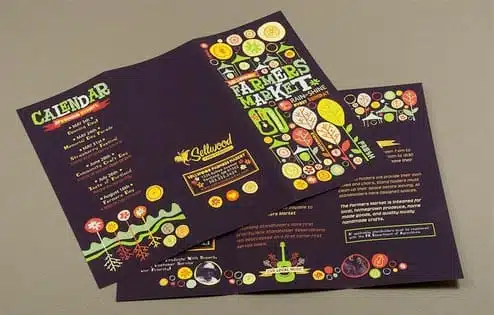
black space brochure design

2. Refresh your geometry.

We don’t know who said a brochure has to be a plain rectangle, but we suspect it was the same guy who said the Wright brothers should just give up on airplane-ing.

Brochures can (and should) come in all shapes and sizes, with different folds to accent different features.

See two examples below: one, a square brochure with a sleek and modern design, and a die-cut museum brochure with a gate fold and a tab that sticks out of the side.
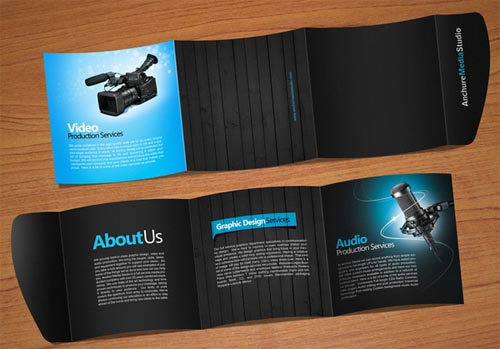
square brochure design

3. Try an cross fold.

An cross fold is a type of fold that opens outward from the middle, with four outside panels that create a cross shape.
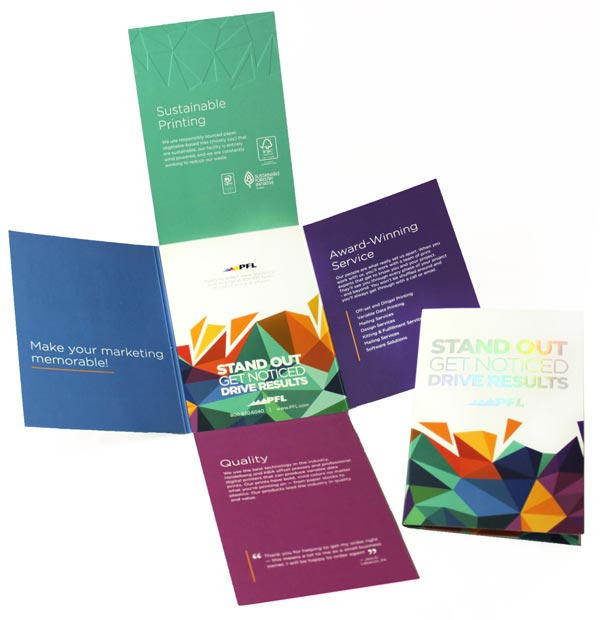
cross fold brochure design

The cross fold may as well be the best-kept secret in print marketing. It’s every bit as underused as it is powerful, and here’s why. With this type of fold, a reader has to perform just a little bit more work to open it up than with a typical brochure — less than a fraction of a second. But in that second, reader engagement skyrockets.

There are three extremely compelling things at play here: there’s the tactile experience of unfolding the cross fold, and the surprising presentation of design elements (completely unlike the standard brochure) that pulls your customer in. Finally, and most importantly, the middle panel is like a magnet for the eye — making it the perfect place to plunk down your irresistible call to action.

It’s also versatile. Use a special kind of glue called a tip-on to attach a card or small gift within it, fold it up and send it as a self-mailer without packaging, and use it as a folder for loose content within it. Check out our brochure templates for more brochure folds!


4. Integrate it with your digital marketing.

The example below may look like a traditional brochure, but don’t be fooled — it’s custom-made for you.
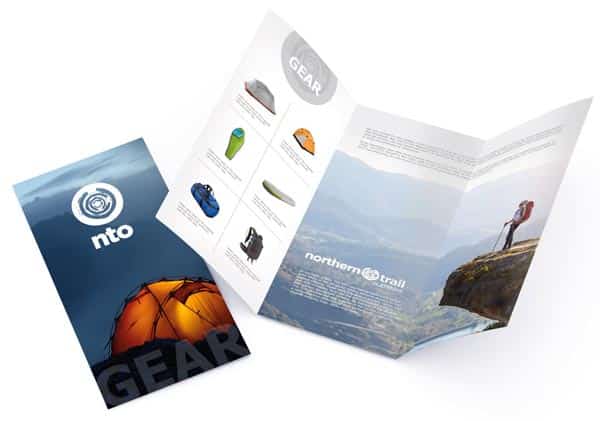
personalized brochure example

Well, maybe not you, personally. The images you see in this brochure correspond to one customer’s browsing history, or contents of their shopping cart, on the client’s website. That’s right. If Joe B. in Salt Lake City spent several minutes poking around on your website looking for camping gear, Joe B. will get this brochure in the mail 30 days later.

But the same goes for Jenny K. in California, who was looking for rock climbing stuff — except her brochure will feature rock climbing shoes, a rope, and quickdraws, and a woman climbing at Yosemite.

This customizable brochure info is powered by variable data printing, a print effect that’s especially powerful when combined with marketing automation. At Printing for Less, for example, it works like this: you set up a rule or series of rules within your CRM, and we automatically mail customized content to your leads and prospects.

Read More: Tactile Marketing Automation

5. Use a creative die cut.

A die cut is a printing technique that’s done with a piece of equipment that’s a bit like a stamp made of blades. It can punch out any shape you can imagine: squares like the in the black brochure below, or amorphous shapes like the foot in the other example.

A die cut can create an entirely unique shape for your brochure — elements of your logo, the shape of a product you sell, or the first letter of your name, for example.

You can use a die-cut piece as a separate shape within your brochure (tipped-on with glue, folded back like a flipbook, or popping out like a popup book). You can use it to let the reader “peek through” your content to create suspense, or you can make it pop up to add surprise and draw the eye to a specific area.
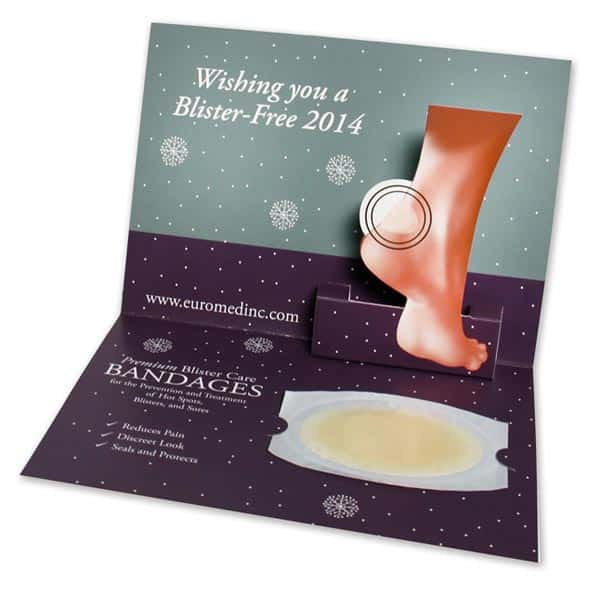
PopUp Brochure example

6. Go Big, or Go Bigger

By now you’ve seen how many ways brochures can break the mould, but one of the simplest ways to grab attention is to crank up the size. In this example, the brochure becomes an in-depth pamphlet, giving the reader extra opportunities to interact with your brand messaging.
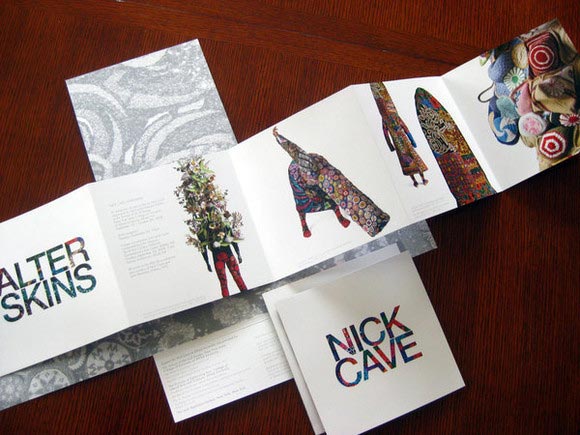
complex pamphlet design

7. Think avant-garde

Pop the lid off your creative boiler and think of new forms your brochure can assume. Edgy concepts that depart from convention can get results just for being unusual, or featuring breathtaking original art. This idea incorporates professional design with a unique layout, and results in a truly memorable piece.
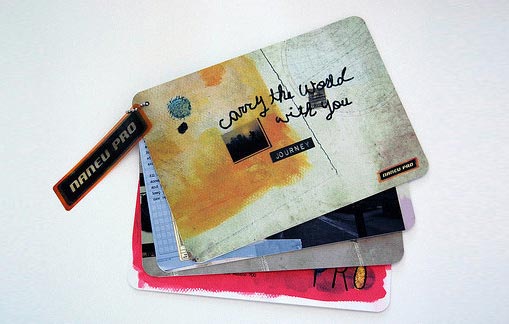
unique brochure design

8. Design a brochure holder.

You could purchase a plastic brochure holder for your office or store. Or, you could extend your brochure design to the holder itself, creating one cohesive piece that tells a story. In this example, a custom brochure holder is made to match this restaurant’s to-go menus to keep that brand top-of-mind (even when the holder’s empty!)

If you go this route, your printer will send these holders in a flat pack that you can assemble, stock, and replace as needed over time. Not only are they cheaper than a plastic holder, but they’re spreading your brand message, which is way more than can be said for a faceless slab of plexiglass.
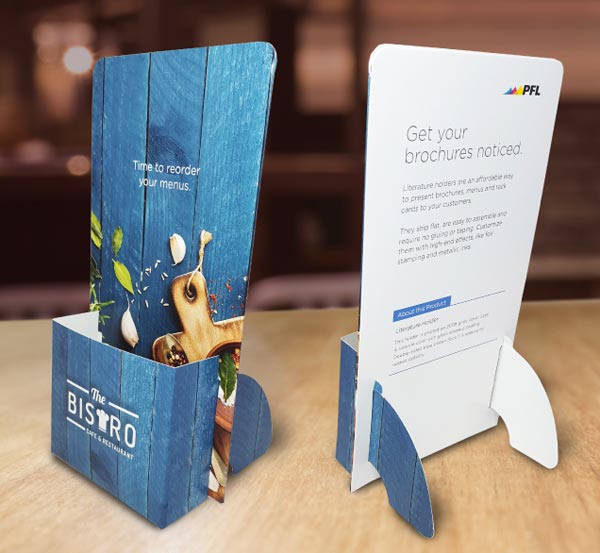
brochure holder example

Ready to put these ideas into action?

Got some inspiration? Here are a few more things to help warm up your creative muscles as you set off to design one brochure to rule them all:

  • Who is my target audience?
  • What is the primary purpose of the brochure? (i.e. tell the company story, highlight specific products, make a special announcement)
  • How will this brochure be distributed? (i.e. mail, conference, on-site)
  • Is one brochure sufficient? (i.e. individual product focus, company vision, services offered, special event)

Make an outline of your key points, based on your responses above. Create the written content first. This will help your designer (even if you’re the designer!) create the perfect layout, and synthesize killer custom effects with your vision to create a brochure that your customers can’t resist.

Printing for Less (Printing for Less) has been an industry leader and provider of high-quality, unique printing services since 1996. Though we are a large company with customers across the globe, we treat our customers with the attention and care you’d expect from a luxury printing boutique. From business cards and banners to letterhead, flyers, and beyond — Printing for Less knows printing like no other. Let’s talk about your project! Our print consultants are available 8am-5pm MT Monday through Friday at (800) 930-7978.
design your own brochure
Get A Brochure Printing Quote

Custom Fit

It is our pleasure to highlight a customer catalog that exudes class, professionalism, and originality. Q Custom Clothier provides more than excellence in men’s clothing. They deliver an experience. Their web-site, store locations, and catalog communicate distinction, sophistication, and refinement. They offer custom solutions in men’s fashion that are unparalleled. With store locations in Dallas, Houston, and Tulsa, they also provide appointment driven, personal attention nation-wide.

Q Clothier Catalog


This professional catalog was a work of art. The rich satin finish on the printed catalog, called soft touch, speaks to the quality of this bespoke clothier.  They chose to use a thick card stock with a smooth finish, creating a luxurious texture which compliments their brand. They specialize in craftsmanship, quality, and customer service which is reflected in the catalog. The photos draw attention to the detailing and beauty of the garments; while the language throughout the piece is minimal. This style lends itself to a distinctive sophistication. In this high-quality, commercial catalog, Q Clothier solidifies their public image with targeted branding and key messages.

You can learn more about them by visiting www.qcustomclothier.com .

Need help with your print? Talk to a live print expert today: 800-930-7978.

6 Real Examples of Creative Print Design Ideas to Knock the Socks Off Your Competition

If you’ve ever considered using creative print design as a way to stand out from the competition, you have the right idea!

Sure, digital marketing (by comparison) is fast and inexpensive. You can make last-minute changes to digital designs and A/B test different landing pages and ad copy with very little risk. However, the accessibility of digital marketing also means that everybody’s doing it — and you know how hard it is to stand out in a saturated environment.

The perfect solution is to turn to print.

Printed materials aren’t ethereal like digital ones. The recipient of a digital resource may be too screen-weary to spend much time with it, while the same recipient may delight in a physical handbook that feels velvety to the fingertips.

As much as we like to fancy ourselves forward-thinking, rational beings, we’re still deeply entrenched in the delight that comes from sensory experiences. Use this to your advantage in your sales and marketing materials; go beyond the standard rectangular business card or tri-fold brochure and go where no graphic designer has gone before.

Here are seven real examples of truly creative print design that will outdo your competition.

#1: Giving New Meaning to the Die Cut

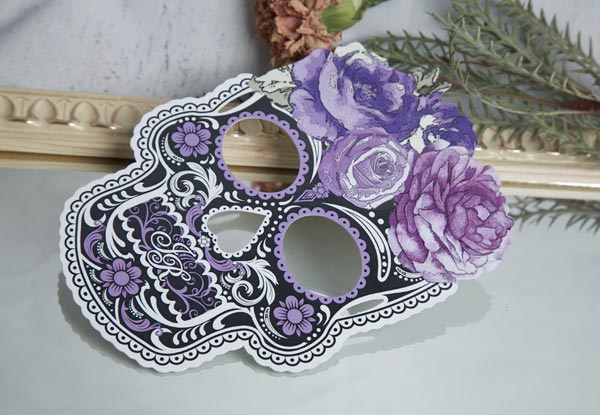
complex die cut business card

This invitation utilizes both a unique shape (a calavera, or sugar skull) and a velvety texture to grab the attention of invitees. The printing technique that creates an unconventional shape like this one is called die cutting, and it’s possible to use this effect to replicate just about any shape you can imagine.

The velvety feel is the result of a special coating effect. Think back to the last time you bought a high-end gadget or maybe an expensive cologne — the box likely had a similar velvet coating effect to communicate luxury and send a nice little tingle through your nervous system as you picked it up.

Use it: What does your business do? Can you use a creative die cut to communicate an idea about a product or service you sell? If you’re creating event invitations or a high-end product, can you incorporate a velvet coating to excite the senses?

#2: Stand Up to Stand Out

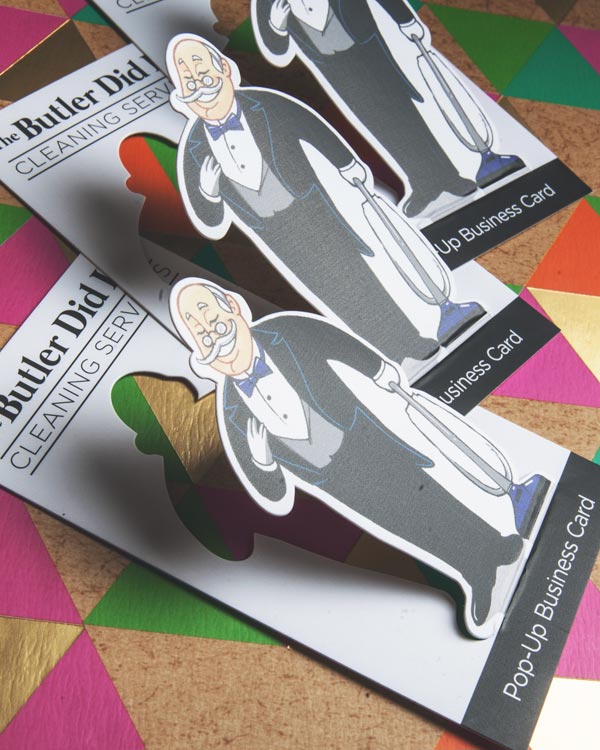
die cut popup business card

Pop-ups aren’t just for children’s books and hipster boutiques, and this popup business card (not a real company, but a real printed example) proves it. Like the first example, the butler in this business card was created using a die cut that transforms this piece into an engaging, three-dimensional conversation starter.

Imagine setting these out at an event or at a local community hotspot: your business card would be the only one jumping out at its viewers!

Use it: Where would a popup element do your business a favor? Beyond business cards, you can create 3D popup print designs within pamphlets, books, posters, brochures — you name it.

Try popping out your logo, an illustration of your target customer, an announcement, or a representation of your product or service. You can get super elaborate with popups, like card company LovePop demonstrates with their elaborate popup designs.

#3: Catch the Light, Catch the Sale

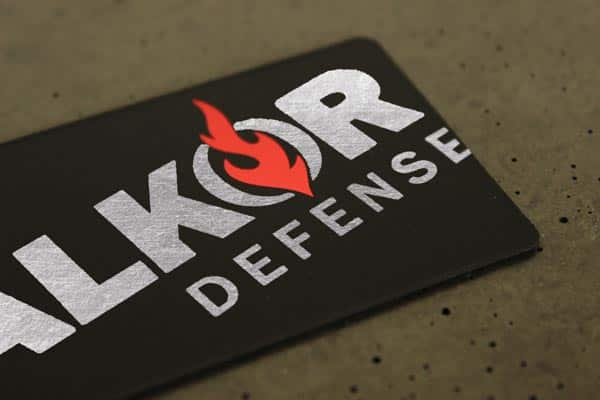
silver foil business card

This isn’t your grandma’s business card (unless your grandma is the coolest kid on the block, in which case, it is your grandma’s business card). This card uses extra-thick matte stock which makes it super durable and memorable. The ink and red flame are both created with metallic ink, which catch both the light and the recipient’s attention.

Use it: Matte cardstock for business cards makes it possible to actually write on the card, which is super useful if you’re handing your cards out at an event and want to leave a personal note to the recipient.

It gives it a raw, unique feel as well, which contributes to a strong and lasting first impression. And using metallic ink is one of the more cost-effective ways to personalize your business card to grab more attention.

#4: Traveling Twain

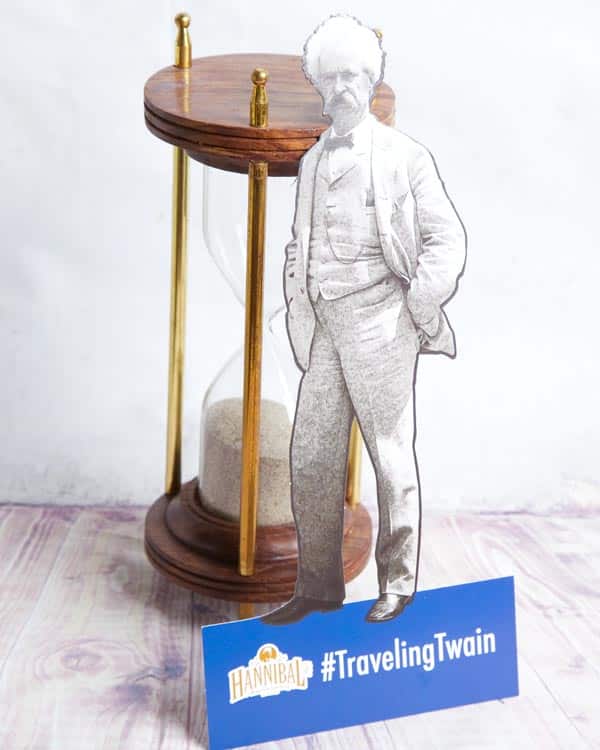
die cut stand-up business card

This piece was part of a social campaign that aimed to get people to take pictures of their travels alongside the famous author. It’s like a table tent (you’ve seen these at restaurants, little pop-up promotional pieces) that functions as an informational brochure. It’s made of thick cardstock for durability.

Use it: Get your customers to actually use your content in their lives. Can you start a social media movement using creative print design? Incorporate die cuts (like this cutout of Mark Twain’s body), multisensory experiences (scratch-and-sniff or bioluminescent ink), or content that you discover slowly through a series of folds.

#5: Shape Up or Ship Out

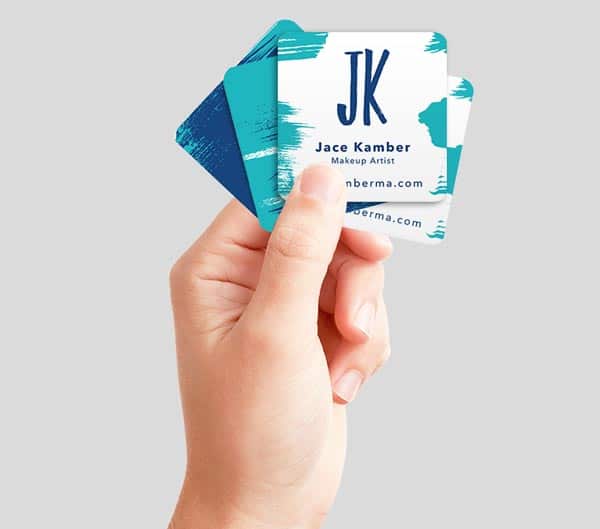
square rounded business card

Square business cards are all the rage, but add rounded corners and a powerfully simple design and you’ve got a memorable tool that’ll outlast all of your competitors’ flimsy cards. It’s small, so it still fits in your prospect’s wallet, but the uniqueness of its shape will help others associate uniqueness with your brand.

Use it: Create a square business card design using the rule of thirds for a truly stunning result.

6#: Try a New Angle

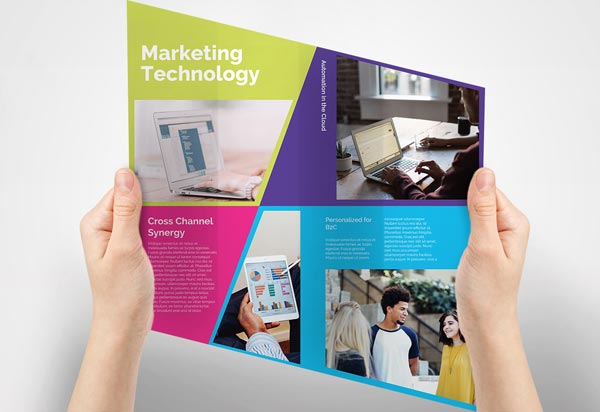
parallelogram brochure

This brochure opens into a rhombus rather than a rectangle, giving it a modern look and feel. Additionally, the copy can be personalized for different members of your target audience using variable data technology. All you have to do is provide your printer with rules for which pieces should get which copy and images, and, voila! You have ultra-custom marketing materials, every bit as targeted as your digital marketing content.

Use it: If style is important to your brand — say, you’re a creative agency or graphic designer — this asymmetrical design can be the perfect choice. And variable data printing is a custom effect you can use to create any kind of customized content: from brochures like this one to EDDM mailers, postcards, kits, and invitations.

If you can dream it, we can do it! We encourage creative ideas at Printing for Less — and we specialize in helping custom projects come to fruition. Bring us your challenging projects. We will shield you from the mess of sloppy printing while meeting your printing needs.

Need help with your print? Talk to a live print expert today: 800-930-7978.
Mirror, Mirror on the Wall – Who’s got the Coolest Card of All?

Print never fails to inspire talented designs, just check out the business card Printing for Less printed for interior designers Home Decorable!

foil stamping example


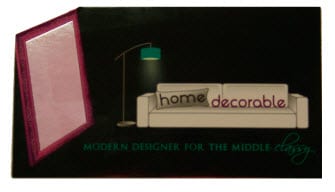
Foil stamping is a sharp way to add some zest to your business cards, and always catches the eye of prospective clients and contacts. Home Decorable defines themselves as a “modern designer for the middle classy,” and they wanted a card that showed their design skills right off the bat.

home decorable business card


Instead of simply including some decorative foil outlining around the card, Home Decorable actually designed a living room scene on the business card – with the square silver foil appearing as an oversized mirror in the room. There is also a small die cut at the top of the mirror to accentuate it even more.

The use of the silver foil on this card really makes the mirror come to life, and simply can’t be ignored. This is definitely one of the most creative uses of custom effects we’ve ever seen on a business card!
Contact Printing for Less today, and find you how your next business card can rise above the rest!

Need help with your print? Talk to a live print expert today: 800-930-7978.

Christening the Crane

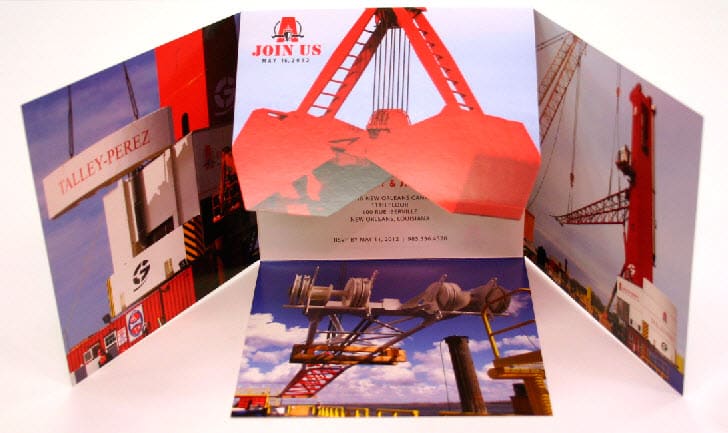
Take a look at the Iron Cross Fold Invitation Printing for Less printed for Associated Terminals of New Orleans, LA.

Associated Terminals is one of the largest midstream stevedoring companies on the Mississippi River, operating an entire fleet of high capacity floating cranes! So, when this company gets a brand new one of these big boys on the team, they don’t just add it to the mix – they have an actual ‘christening’ party to welcome it to their world.

associated terminals logo


For a christening this cool, Associated Terminals didn’t want the average greeting card invitation. That’s why they chose this totally unique Iron Cross Fold, including a die cut crane on the top fold to excite their invited guests. The piece turned out looking very cool, and could inspire any industry.

multi fold example

Imagine what your company could do with an eye-popping marketing piece like this card invitation! Need help with your print? Talk to a live print expert today: 800-930-7978.

Don’t Try to Edit PDFs in Adobe Illustrator

For years, editing PDFs was discouraged. There were too many things that could go wrong.  Ideally, edits are made in the original application to avoid any compatibility issues and the potential nightmare of keeping track of changes between formats.

But improvements to the PDF format (thanks to Adobe Acrobat’s ever-increasing functionality) in recent years has meant much more flexibility in editing workflow.

So which Adobe programs can you use to edit a PDF? Because other Adobe Creative Cloud programs like Adobe Illustrator can also save as the PDF file format, it’s understandable that you’d assume that “any CC program goes” when it comes to editing PDFs.

But while Adobe Illustrator is the gold standard of vector graphics programs, and while it can handle both graphics and type, it’s not a dedicated PDF editing application.

Yes, if you have a native Illustrator file and you’ve simply generated a PDF from that source file and checked “Preserve Illustrator Editing Capabilities” when saving it, you’re pretty much safe making additional edits in Illustrator.

Much of the time, though, Acrobat is the way to go.

Making PDF Edits in Adobe Acrobat

If you’re going to edit a PDF in Adobe Acrobat, launch Adobe Acrobat Pro and then open the file you need to edit.

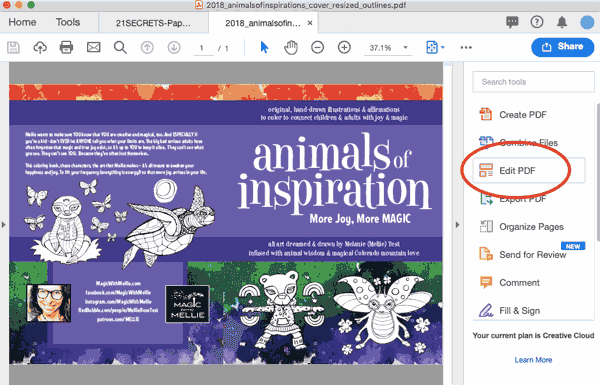
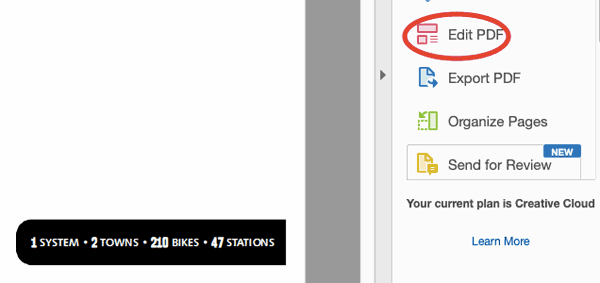
Once the PDF document you’d like to edit is open, you can either click “Edit PDF” in the right hand pane:

Editing a PDF in Adobe Acrobat

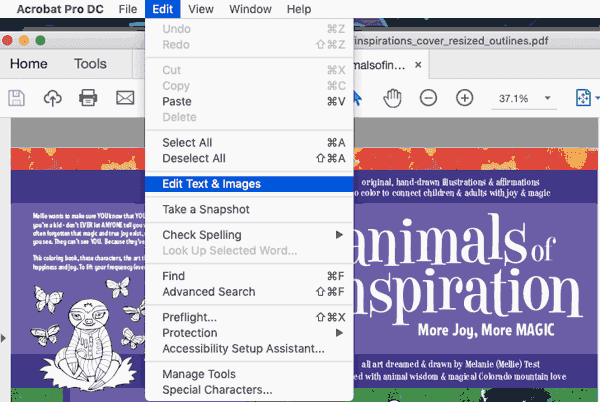
…or use the Edit menu to choose “Edit Text and Images” from the dropdown:

editing text in a PDF in Adobe Acrobat

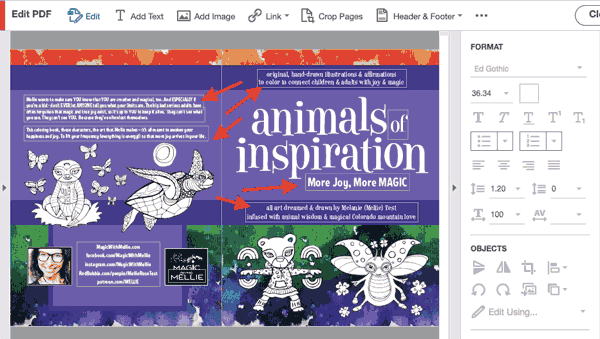
Now, you’ll see that bounding boxes have appeared around any sections of editable text.

bounding boxes in Adobe Acrobat

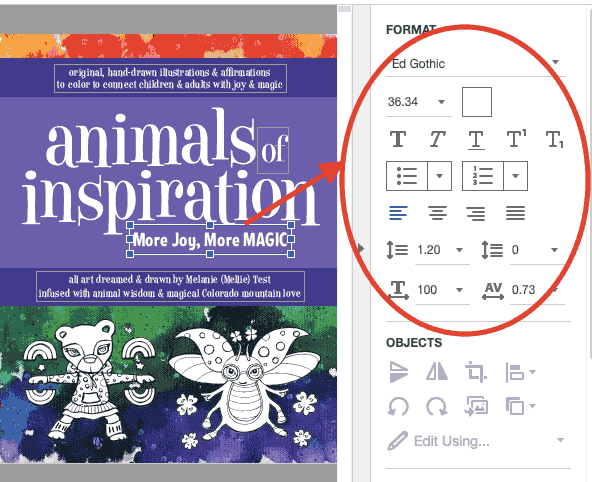
Once you select (click on or within) a bounding box, you’ll notice that the greyed-out text options are suddenly populated and active.

edit text options in Adobe Acrobat

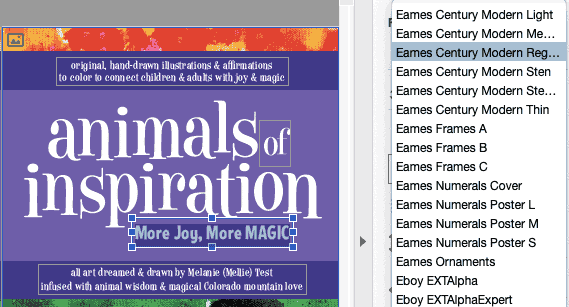
You can highlight the text you want to change and use the font dropdown to choose a new font.

adding a new font in Adobe Acrobat

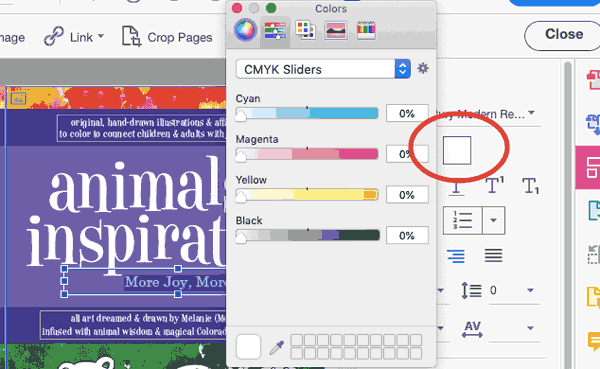
You can change the font size, the paragraph alignment, and the leading and line spacing. You can also change the color of the type by clicking the square next to the type size (which is in this case white because the text is white) and then moving the color sliders to get the new color you’ve chosen.

CMYK sliders in Adobe Acrobat

Adobe Acrobat Pro is a robust PDF editor and has numerous editing capabilities. That said, Acrobat hits a wall when it comes to editing vector and raster graphics. Acrobat alone isn’t the best choice if you want to edit images.

When your document images include vector artwork, Adobe Illustrator will be your best friend. You’re probably going to feel like you’re taking the long way around, but trust us. We’re going to give you the safest way to make spot changes and keep your document’s integrity intact.

How to Edit a PDF in Illustrator

What Adobe Acrobat can’t handle is complex graphic edits. The good news for us all is that, assuming you’re using the Adobe Creative Cloud, you’ll be able to make edits pretty seamlessly across the Adobe Cloud applications. Over the years, Acrobat has learned how to talk to Illustrator and Photoshop, and even when edits can’t be made directly in Adobe Acrobat Pro, the appropriate applications can be launched (and edits made) without ever closing your PDF file.

To get an idea of how seamless this process can be, first launch Adobe Acrobat Pro and then open a PDF that’s stored on your computer. Here, we’re opening a PDF cover spread for a coloring book. Once your document is open in Acrobat, click “Edit PDF” in the right hand panel.

edit a pdf

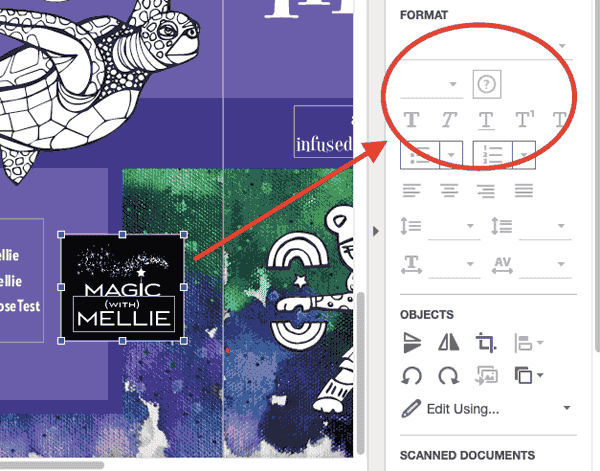
Now that the edit functions have been activated, click around your document to select items that you might want to edit. As you do this, start to compare the available editing options. Notice that with some elements, the editing features in the right hand editing panel remain greyed out and inactive.

greyed out editing tools in Adobe Acrobat

This is a case where, for vector graphics, Illustrator can come to your rescue.

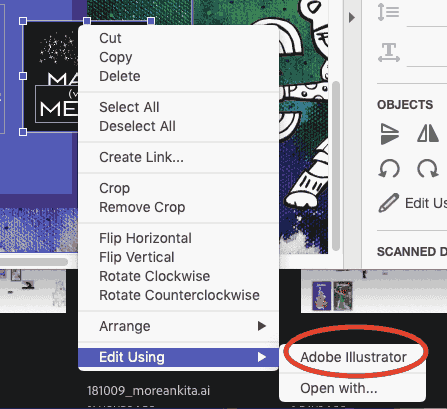
To edit any vector graphics in your PDF with the Illustrator program, first make sure a relevant graphic has been selected (click on the graphic to select it). Then, right-click on the graphic, or control-click on a Mac, go down to “Edit Using” and choose “Adobe Illustrator” from the flyout.

( edit a PDF in Adobe Illustrator command


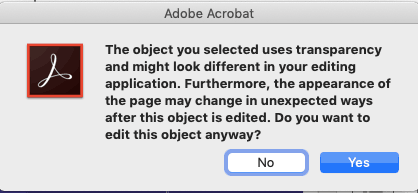
Note: you may see a warning dialog box. If you accept the risks, then go ahead and proceed. Please click “Yes.”


Adobe PDF warning in Adobe Illustrator


If Illustrator isn’t already open on your computer, it will now automatically begin to launch, and a document containing the graphic you’ve chosen to edit will open within the Illustrator interface. What has happened is that you’ve now extracted editable content from Adobe Acrobat.

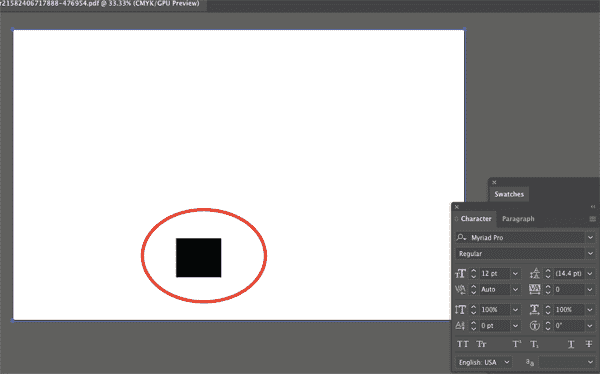
You’ll probably notice that the artboard looks huge — it’s taken on the dimensions of your Adobe Acrobat file, and your editable artwork has also carried over its same positioning within the larger artboard space.


large artboard in Adobe Illustrator


The size of this artboard is extremely important. Keeping these artboard dimensions will ensure that any edits you make in Illustrator will seamlessly be written back into your Acrobat file.

Don’t change the bounding box, either, if you want your positioning to stay intact within the original PDF. (Yes, there’s a lot going on here, but as long as you take the proper steps, your artwork and files — and all your hard work — will be safe.)

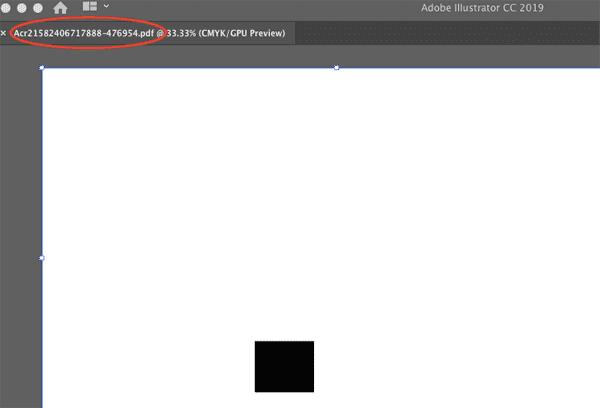
You also may notice that when Acrobat launched Illustrator, it created a new file with a crazy name made up of random letters and numbers. The file that has been generated and appears in Illustrator is is called a “touch up file,” and only exists in your computer’s memory.  This means it’s not saved locally at the moment (but can be, of course, with the File → Save As command).


weird name generated by Adobe Illustrator


From within Illustrator, go ahead and make your changes to this touch up file.

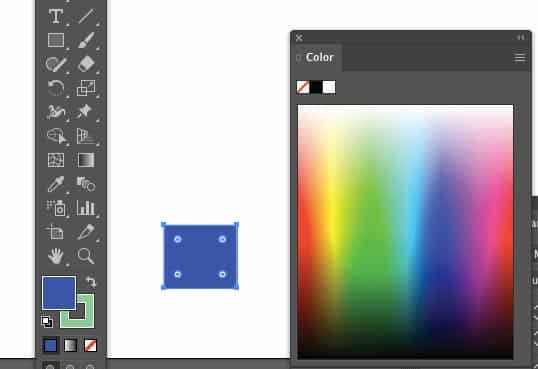
We’re going to change the color of this logo background box.


changing color in Adobe Illustrator


You may notice some odd behavior when you’re making your changes. Because we’re communicating back and forth between two programs, that’s totally normal — it just takes some getting used to.

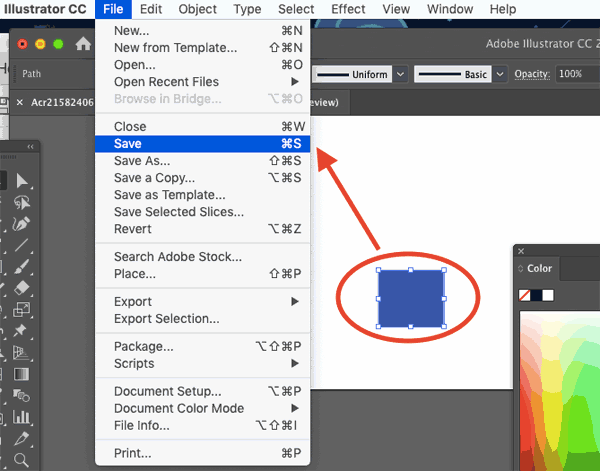
When you’re done with your vector edits and ready to head back to Acrobat, you’ll go to File → Save. Remember, you’re in the touch-up file, so you’re saving these changes right back into Acrobat, NOT onto your hard drive.


saving changes in Adobe Illustrator


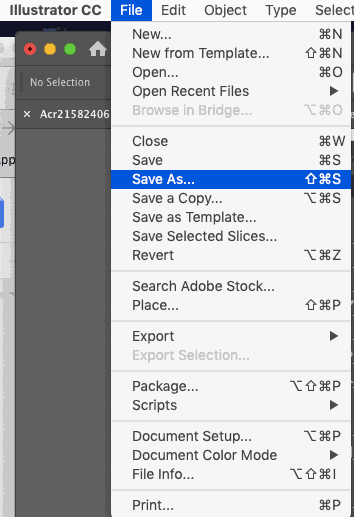
Do note that if you think you might need your changes on their own for use in the future, you can also choose File → Save As and create a standalone vector file, saved on your hard drive.


illustrator save as screenshot


For our current purposes, though, simply saving will immediately export your changes back into your Acrobat document without requiring any additional steps.

Here’s a summary of the steps if you need to harness Illustrator’s vector editing power:

  1. Open your PDF file in Adobe Acrobat.
  2. Choose “Edit PDF” from the right hand panel.
  3. Select the vector artwork you’d like to change.
  4. Right- (or control-) click and edit using Adobe Illustrator.
  5. Make your changes to the graphic without changing anything else about the touch up document as launched.
  6. Save your changes.
  7. Confirm your changes in your open Acrobat document.

How to Edit PDF Text in Illustrator

If you’re going to edit text in a PDF, it’s usually best to stick with Adobe Acrobat. As we mentioned earlier, Adobe Illustrator is more dedicated to graphics (specifically, vector artwork).

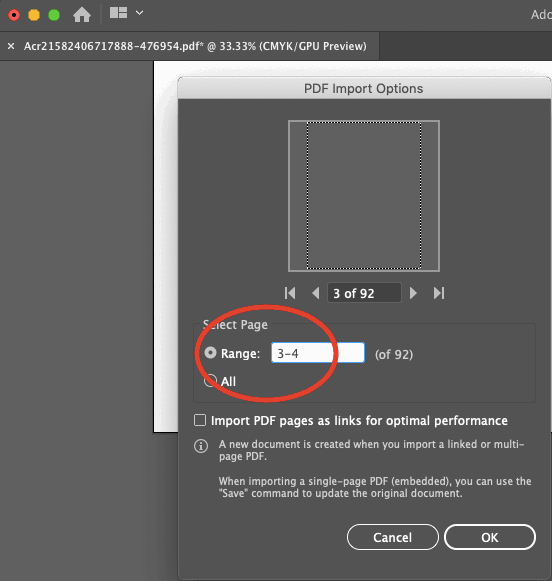
That said, if you’re going to open your PDF file in Illustrator to edit the text, you can go to File → Open and select your PDF file. Then, if it’s a multi page PDF, you can choose the page range you’d like to open.


page range details in Adobe Illustrator


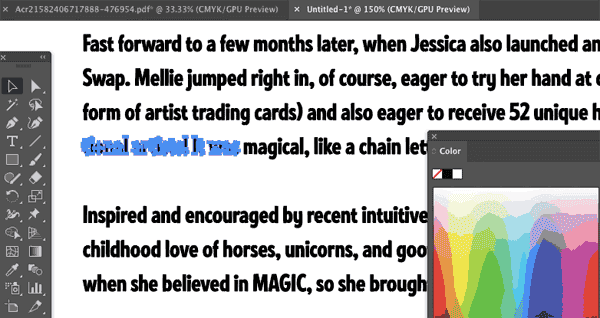
Once the pages are open, you can click on the text. On this particular document, you’ll see that the text isn’t editable, because it was converted to outlines in Illustrator before the PDF file was generated.  


editing outline text in Adobe Illustrator


If this is the case and you still want to edit the text, you’ll need to have the original font on your computer and retype it.

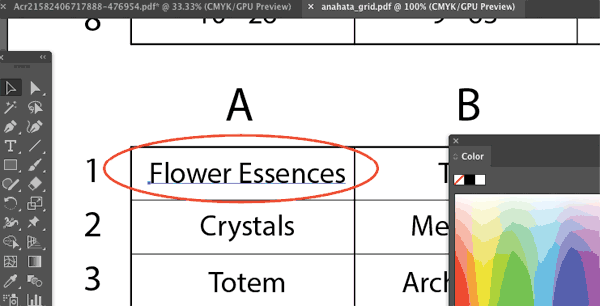
If your text is editable, though, you’ll see a line or a text box appear when the text is selected, instead of individual letter shapes.


edit text in adobe illustrator


In that case, make the text changes you need and then re-save the PDF file. Make sure it’s saving as a PDF and not an .AI file when you do this.

If you need help with getting your project ready for print, PrintingForLess can help! Learn more and place your order with Printing for Less here.

Need help with your print? Talk to a live print expert today: 800-930-7978.

  • « Go to Previous Page
  • Page 1
  • Interim pages omitted …
  • Page 35
  • Page 36
  • Page 37
  • Page 38
  • Page 39
  • Interim pages omitted …
  • Page 47
  • Go to Next Page »

Footer

Printing for Less

info@printingforless.com
100 P F L Way, Livingston, MT 59047

800-930-2423

  • Home
  • Products
  • Services
  • Industries
  • Get Printing Samples
  • Direct Mail Marketing Resource Center
  • Printing Resource Center
  • Blogs
  • Templates
  • Terms & Conditions
  • Contact
  • About Printing for Less
  • Careers
  • Login

Copyright © 1998-2026 PrintingforLess.com. All Rights Reserved.

logo
  • 800-930-2423
  • Products
  • Direct Mail Marketing
  • Services
  • Industries
  • Direct Mail Marketing Resources
  • Printing & Mailing Resources
  • Get a Quote
  • Contact Us
  • My Login
Postcard Printing & Mailing
This field is for validation purposes and should be left unchanged.

Get 20% Off

Subscribe to our weekly newsletter and get an instant 20% off your first print project.

Name(Required)

*Some exclusions apply. See details