My Login
Important Information About RGB and CMYK
Many graphics software programs give you the choice to work in either RGB or CMYK. These are called “color spaces”. Scanners, phones, and digital cameras create images using combinations of just three colors: Red, Green and Blue (called “RGB”). These are the primary colors of light, which computers use to display images on your screen. Printing presses print full color pictures using a different set of colors, the primary colors of pigment: Cyan (blue), Magenta (red), Yellow and Black (called “CMYK”). This is “4-color process” or “full-color” printing that comprises the majority of magazines and marketing materials you see every day.

It’s Best If You do the RGB-to-CMYK Conversion of Your Images
You will have more control over the appearance of your printed piece if you convert all of the images from RGB to CMYK before sending them to us. When we receive RGB images, we do a standard-value conversion to CMYK, which may not be perfectly to your liking. We want you to be happy, so please, take the time to prepare your file properly. We cannot be responsible for sub-par results if you furnish your images in RGB. Even though monitors always use RGB to display colors, the colors you see on your monitor will more closely match the final printed piece if you are viewing them in the CMYK color space.
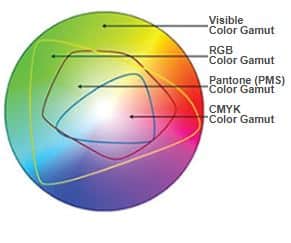
Be aware that it is possible to see colors in RGB that you can’t make with CMYK.
They are said to be “out of the CMYK color gamut”. What happens is that the RGB-to-CMYK translator just gets as close as possible to the appearance of the original and that’s as good as it can be. It’s something that everyone in the industry puts up with. So it’s best to select any colors you use for fonts or other design elements in your layout using CMYK definitions instead of RGB. That way, you will have a better idea of how they will appear in your printed piece. Here’s a common example: many programs translate the 100% Blue in RGB into a somewhat purple-looking color in CMYK. We recommend a CMYK value of 100-65-0-0 to get a nice clean blue. Working in the CMYK color space allows you to select the CMYK recipe, or “screen build”, that gives you the results you want.
Here are some examples of how various RGB colors to CYMK:
|
rgb colors |
cmyk colors |
|
rgb colors |
cmyk colors |


You most likely won’t notice this kind of color shift in a color photograph.
It is more likely to happen if you pick a very rich, vibrant color for a background or some other element of your layout. It probably won’t look bad, it just won’t look exactly the same. But it may not be noticeable at all either.
To purchase a color guide with over 3,000 process colors and their CMYK screen percentages visit the CreativePro Pantone store.
Converting to the CMYK Color Space
Here is a list of several common programs with instructions on how to make sure you are working in the CMYK color space. If your program or version is not listed here, don’t worry. Most of these instructions will apply to all versions of a program. If at any time you need further help, please call us for assistance. We are happy to talk you through the steps needed to get your document into the CMYK color space.
Microsoft Publisher 2000
Microsoft Publisher defaults to RGB. It is easy to convert everything to a CMYK color space or to start a new document using the CMYK color space.
Use the following menu options: Tools/Commercial Printing Tools/ Color Printing and select Process colors (CMYK). Please note that all images incorporated into a layout need to be linked and not embedded in order to maintain the CMYK color space within the image. Using the following menu options does this: Tools/Commercial Printing Tools/Graphics Manager and highlight the embedded image. Click Link and click Browse to locate the original file and link to it. You will then need to send both the images and the layout file to us for printing.
Microsoft Publisher 2003-2007 or later
Select File Tab, then select Info. Select Commercial Print Settings. Select Choose Color Model, then Select Process Colors (CMYK)
Adobe Photoshop
If the file already exists select the following menu options: Image/Mode/CMYK When starting a new file select CMYK for the mode before clicking OK.
Corel Draw
Select each object you want to convert. Select the Fill tool and click Fill Color Dialog. Make sure the Color model is CMYK. For each object with an outline: Select the Outline tool and click the Outline Color Dialog. Make sure the Color model is CMYK.
Adobe Illustrator
Select File/Document color mode/CMYK color
Quark Xpress
Use the following menu options: Edit/Edit Colors/Show Colors in Use/Highlight Color and click Edit. Change model to CMYK and deselect Spot color. Remember to send us your layout and linked images!
Adobe InDesign
Use the following menu options: Window/Swatches and Window/Color. Double click color in Swatches Change color mode to CMYK and color type to Process. Any colors created in the document that are not in the Swatches palette, need to be changed to the CMYK color space. Select each object you want to convert and make sure the Color palette reflects the CMYK percentages. Click top right arrow in the palette to change to CMYK if necessary. Remember to send us your layout and linked images!
Adobe Pagemaker
Use the following menu options: Window/Show Colors. Double click “colors” in palette and select Model to be CMYK and Type to be Process. Please be advised that Pagemaker does not successfully represent CMYK color on the monitor.
The following programs do not have the capability to convert to CMYK. No worry, we will convert it for you free of charge!
Adobe PhotoDeluxe
Microsoft Word
Microsoft Excel
Microsoft Works
Microsoft PhotoDraw
Picture It Publishing
If you do not see your program listed here, or are having difficulty converting RGB to the CMYK color space, please call us at 800-930-2423 for further assistance.
For more info on color see: Guide to Using Color and Ink in Commercial Printing